
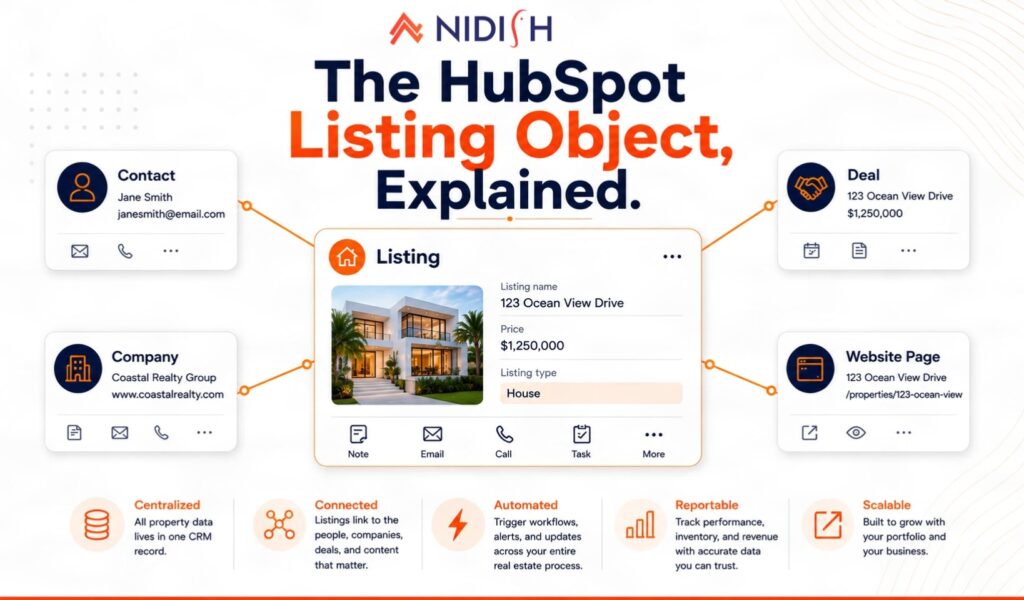
The HubSpot Listing object is a native CRM object that stores a property or unit to be bought, sold, or rented as a real record, with its own properties, associations, workflow triggers, reporting, and API. It is not a custom object you build. It ships with HubSpot and sits switched off until a super admin activates it.
Most real estate teams on HubSpot have never turned it on. They are storing properties in a HubDB table, a spreadsheet, or a deal record with the address typed into the deal name. All three work until the day someone asks a question the data cannot answer.
This post covers what the Listing object is, how to activate it, how to structure it properly, and what it unlocks once you do. It also covers what it does not do, because that matters just as much.
We build on this object every day. It is the foundation of the HubSpot real estate theme we launched in July, and everything below is what we learned putting it into production.
Table of Contents
What is the HubSpot Listing object?
In HubSpot, listings store information about a particular property or unit to be bought, sold, or rented. Each listing is a full CRM record. It has properties, it associates to contacts and companies, it can trigger workflows, it appears on an index page, and it is addressable through the listings API.
That is the entire point. A property stops being content on a website and becomes a record in your CRM.
HubSpot ships the object with core properties already defined, including:
| Property | Internal name | Purpose |
| Listing name | hs_name | The property identifier, usually the address |
| Price | hs_price | Listing price |
| Listing type | hs_listing_type | House, townhouse, and similar classifications |
You add your own properties on top of these. Bedrooms, bathrooms, square footage, lot size, year built, MLS number, status, agent, and anything else your business actually uses.
Where the Listing object sits in HubSpot’s data model
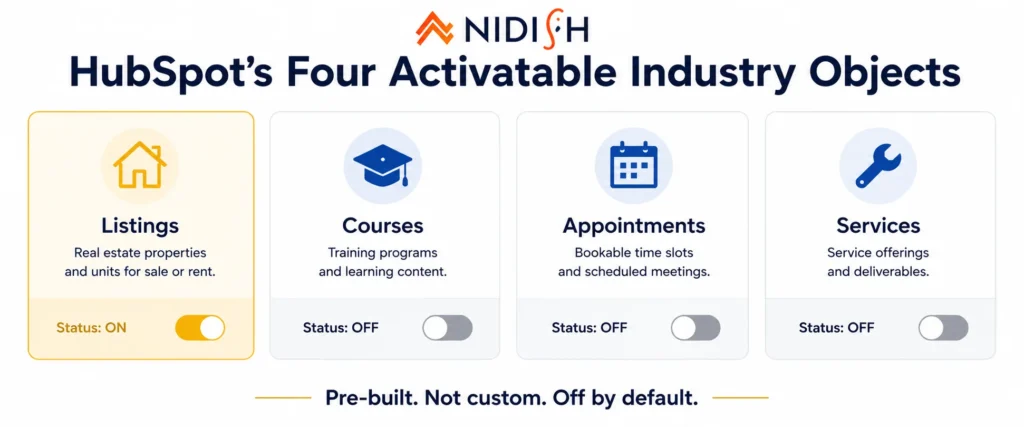
This is the part most people miss. HubSpot has four objects that exist in every account but stay dormant until activated:
- Listings (real estate)
- Courses (education and training)
- Appointments (services and scheduling)
- Services (service-based businesses)
These are not custom objects. Custom objects require an Enterprise subscription and you build them yourself. These four are pre-built industry objects that HubSpot maintains, and they are available to activate without an Enterprise plan.
If you are in real estate and paying for an Enterprise subscription purely so you can build a “Property” custom object, stop. The Listing object already exists and HubSpot keeps it updated.
How to activate the HubSpot Listing object
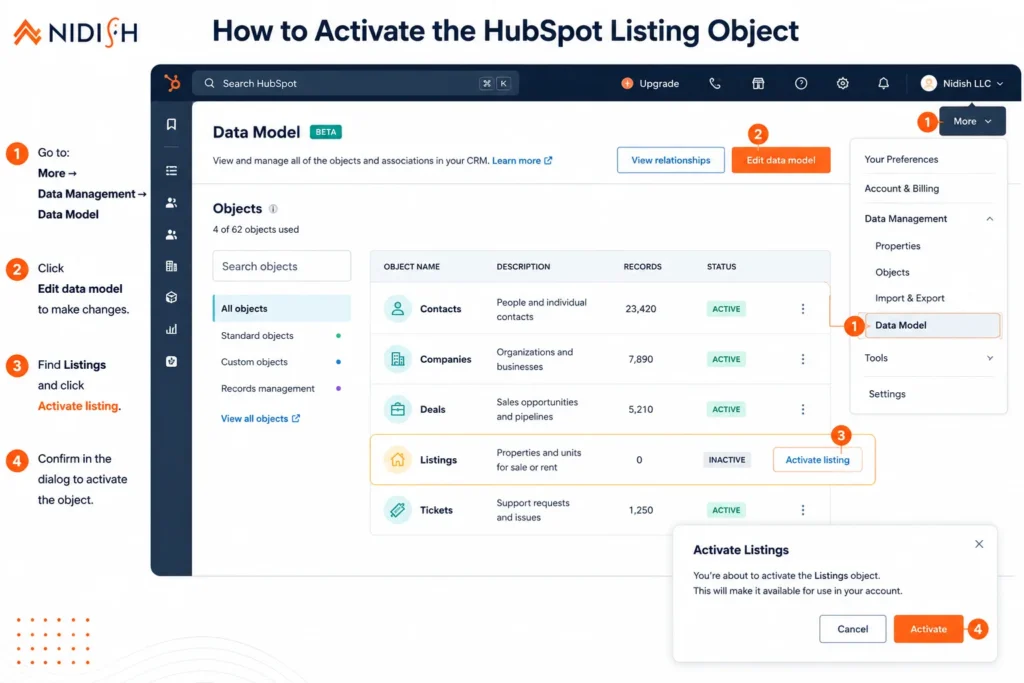
Activation takes about a minute and requires super admin permissions.
- In your HubSpot account, click More, then go to Data Management > Data Model. If More does not appear, go to Data Management > Data Model directly.
- Click Edit data model.
- Find the Listings object and click Activate listing.
- Click Confirm.
That is it. The object is now live in your account.
Once activated, you can associate listings with other objects, view them on a CRM index page, and use them in tools like workflows and lists. Full documentation is in HubSpot’s data model builder guide.
A faster route if you are starting fresh. HubSpot offers data model recommendations, including an industry template for real estate. Applying it activates the Listings object, associates listings to contacts, and adds recommended custom properties and deal pipelines for buying, selling, and renting in one action. That path is available on Starter, Professional, and Enterprise subscriptions across Marketing, Sales, Service, Data, and Content Hub.
If you would rather control the structure yourself, activate manually and build the properties deliberately. That is what we usually recommend, and the next section explains why.
Structuring listing properties: get this right first
The single most common mistake we see is teams activating the Listing object and then immediately importing 300 properties with a loose property structure. Fixing property structure after data exists is significantly harder than getting it right before.
Three rules.
Rule 1: use dropdowns and enumerations, not free text
Property type, status, and city should be select fields with a fixed value list. Free text fields become unfilterable within weeks because someone types “3 bed,” someone else types “3 Bedroom,” and your website filter now shows both as separate options.
Rule 2: numeric fields must be numeric
Price, bedrooms, bathrooms, and square footage need to be number properties. If price is a text field, you cannot sort by it, cannot filter a range, and cannot build a “properties under $500,000” view. This is the mistake that quietly breaks a property search on the website side.
Rule 3: separate status from availability
“Active, under offer, sold” is a status. “Published to website, hidden” is a visibility flag. Teams that merge these into one field end up unable to keep a sold property visible as a case study, or unable to stage a listing before it goes live.
Custom properties can be created directly in the data model builder. Expand the Listings object, click Create property, and configure the field type in the right panel.
Associations: connecting listings to the rest of your CRM
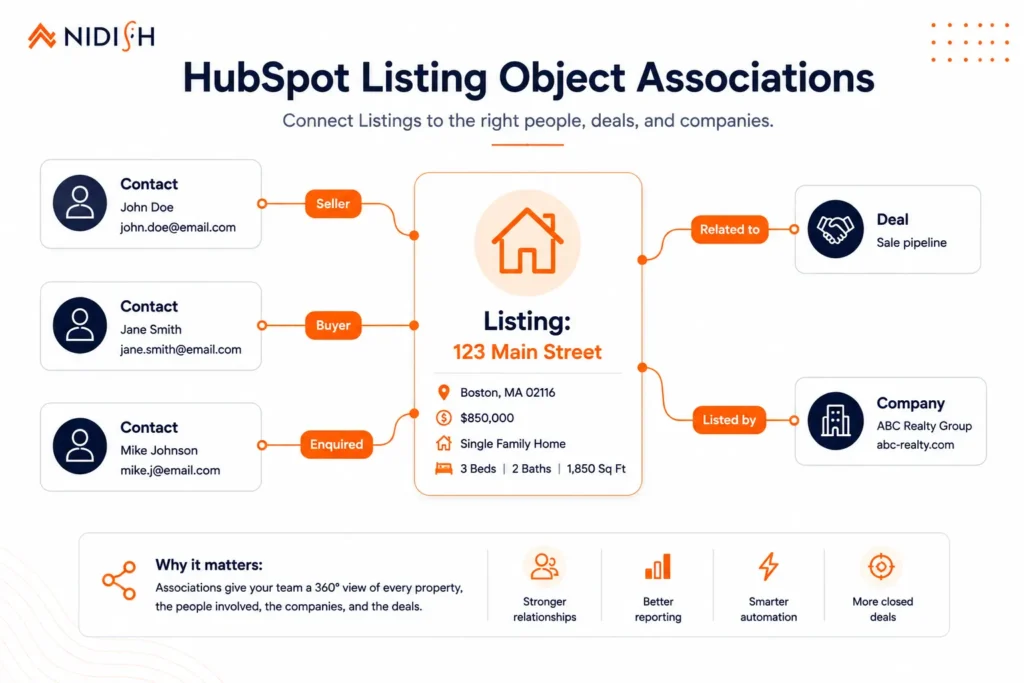
Associations are where the HubSpot Listing object earns its place over any website database.
Listing to contact: The buyer, the seller, the tenant, the enquirer. When someone submits a property enquiry, that contact associates to the specific listing they enquired about. Your agent opens the contact record and sees the property. No hunting through form submission notes.
Listing to company: Useful for commercial real estate, developers, and managing agents.
Listing to deal: The transaction. A listing might carry multiple deals over its life, which is normal for rentals.
You can go further with association labels, which define the nature of the relationship rather than just its existence. On a single listing, one contact can be labelled “seller,” another “buyer,” another “enquired, not viewed.” Labels are created in the data model builder under the Associations tab.
You can also set association limits. If a listing should only ever have one seller, set that association to one-to-one and HubSpot enforces it. Data quality by configuration rather than by training.
Pipelines: buy, sell, and rent are different processes
A common failure is running every real estate transaction through one deal pipeline. Selling a property and renting one share almost nothing operationally. The stages are different, the timelines are different, and the revenue recognition is different.
HubSpot’s real estate data model recommendation sets up separate deal pipelines for buying, selling, and renting for exactly this reason. If you are building manually, create them separately from the start.
Then associate deals to listings. Now you can answer questions like: how many deals has this property generated, what is the average time from listing to closed for this property type, and which agent converts enquiries into viewings fastest.
None of that is answerable when properties live in HubDB.
What you can automate once listings are CRM records
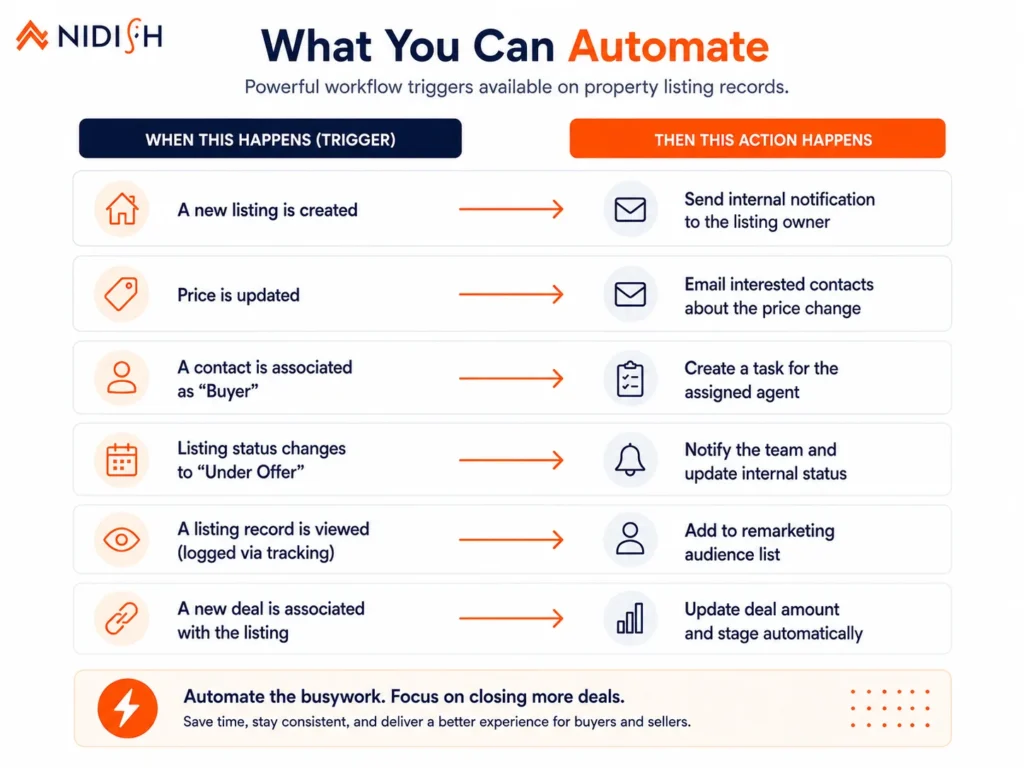
This is the practical payoff. Because listings are real records, HubSpot automation can act on them.
| Trigger | Example automation |
| Price changes on a listing | Email every contact associated with that listing as an interested party |
| Listing status changes to Sold | Move the associated deal, notify the agent, remove the listing from the website view |
| New listing created | Notify agents whose contacts match the property criteria |
| New enquiry on a property | Create a task for the listing’s assigned agent with a 2 hour SLA |
| Listing has been active over 60 days | Task the agent to review price positioning |
| Viewing logged, no follow up in 48 hours | Escalate to the sales manager |
Reporting works the same way. Enquiries per listing, average days on market by property type, agent conversion rates, and listing-to-deal ratios all become standard CRM reports rather than a spreadsheet someone rebuilds every month.
Bringing external property data in through the listings API
Most established real estate businesses already have property data somewhere else, in an MLS feed, a property management system, or a legacy portal. The HubSpot listings API is how you get it in and keep it current.
The endpoints sit at /crm/objects/2026-03/listings and require the crm.objects.listings.read and crm.objects.listings.write scopes. They support:
- Create, single or batch
- Read, single, batch, or paginated at up to 100 records per request
- Update, single or batch
- Upsert, batch, which creates records that do not exist and updates the ones that do
- Associate, linking a listing to an existing record or activity
- Archive, which moves the listing to the recycling bin rather than destroying it
Upsert is the one that matters for a recurring sync. A nightly job that pushes your full property feed through the batch upsert endpoint keeps HubSpot current without you tracking which records are new and which changed.
A practical warning from doing this on live accounts: use a stable external ID from the source system as your matching key, and store it as a listing property. If you match on address, you will create duplicates the first time someone writes “St” instead of “Street.”
What the HubSpot Listing object does not do
Honest limits, because a post that only lists benefits is not useful.
It is not a transaction management system: It will not handle escrow, commission splits, compliance documents, or brokerage back office workflow. Those need dedicated real estate software or custom development.
It does not render your website by itself: Activating the object gives you records in the CRM. Turning those records into property listing pages, search, and filtering on your site is a separate build. That is what a real estate theme built on the Listing object handles.
It is not an MLS integration: The API supports the sync. Someone still has to build and maintain it.
Historic reporting starts when you start: Activating the object today does not backfill days-on-market for properties you sold last year.
Listing object or HubDB? The short version
| Listing object | HubDB | |
| Is it a CRM record | Yes | No |
| Associates to contacts | Yes, natively | No, requires custom work |
| Triggers workflows | Yes | No |
| Native CRM reporting | Yes | No |
| Renders dynamic pages | Through a theme or custom templates | Yes, natively |
| Good for | Properties, anything the sales team touches | Location directories, non-CRM structured content |
For property data, the Listing object is the correct choice for almost every real estate business. HubDB still has a legitimate place for structured website content that your CRM has no reason to know about.
We are publishing a full technical comparison of the two next. This section is the summary.
Turning listings into a website
Records in the CRM are half the job. The visitor-facing half is property listing pages, single property templates, and a search experience that filters against live listing data.
You can build that from scratch with custom templates and CRM object dynamic pages. It is a real project, and for most teams the cost of building it exceeds the cost of buying it.
Estate Pro is our HubSpot real estate theme built on exactly this architecture. It assumes the HubSpot Listing object is active and gives you 17 page templates, property search and filtering, single property layouts, agent profiles, and enquiry placement, for $499 on the HubSpot marketplace.
If your setup needs custom property fields, an MLS sync, or automation on top of the object, that is HubSpot development work and we scope it separately. If you are moving an existing property site onto HubSpot CMS, our HubSpot migration team handles that side.
Frequently Asked Questions
What is the HubSpot Listing object?
The HubSpot Listing object is a native CRM object that stores information about a property or unit to be bought, sold, or rented. Each listing is a full record with its own properties, associations to contacts and companies, workflow eligibility, reporting, and API access. It exists in every HubSpot account but must be activated by a super admin before use.
How do I activate the Listing object in HubSpot?
Go to More > Data Management > Data Model, click Edit data model, click Activate listing on the Listings object, then click Confirm. You need super admin permissions. Once activated, listings appear on a CRM index page and can be used in workflows, lists, and associations.
Do I need an Enterprise subscription to use the HubSpot Listing object?
No. The Listing object is one of four pre-built industry objects, alongside Courses, Appointments, and Services, that can be activated without building a custom object. Custom objects require Enterprise. The Listing object does not. The data model builder itself is available across all products and plans.
What is the difference between the Listing object and HubDB?
HubDB is a website database designed to render dynamic pages. The Listing object is a CRM object. Listings can associate to contacts, trigger workflows, and appear in CRM reporting. HubDB rows cannot do any of that without custom development. Use the Listing object for property data and HubDB for structured website content that the CRM does not need.
Can I sync MLS data into HubSpot listings?
Yes, through the listings API, which supports single and batch create, update, and upsert operations. A nightly batch upsert against a stable external ID is the standard pattern for keeping a property feed current. The integration itself is a development project.
Can I use the Listing object for rentals as well as sales?
Yes. The object covers properties to be bought, sold, or rented. Most rental businesses run a separate deal pipeline for renting alongside their buying and selling pipelines, because the stages and timelines are different, and associate deals to the same listing record over time.
Does activating the Listing object change my website automatically?
No. Activation creates the CRM structure. Your website needs templates that read from listing records to display them. That is handled either by custom development or by a theme built for the object.
Where this goes next
The HubSpot Listing object is the piece of HubSpot’s real estate stack that most teams have not switched on. Activating it costs nothing, takes a minute, and changes what your CRM can answer about your properties.
Get the property structure right before you import. That is the decision you cannot easily undo.
Next in this series we are publishing a full technical comparison of the HubSpot Listing object against HubDB for property websites, covering dynamic page rendering, filtering performance, and where each one breaks at scale.
If you want to talk through your property data structure before you commit to it, book a 30 minute call. We will tell you if you actually need help or not.



 Blog
Blog Case Studies
 Career