
Your reps are already pasting CRM notes into ChatGPT. HubSpot just made that official, and the risk has moved from “shadow AI” to “AI with write access to your pipeline.”
On November 17, 2026, HubSpot announced a new home for HubSpot in ChatGPT. It is a HubSpot screen inside ChatGPT that shows who is waiting on a reply and what is due today. Reps can draft follow-ups, prep calls and move deals without opening the CRM. Five days earlier, HubSpot pinned the same kind of experience to the Claude sidebar.
HubSpot in ChatGPT is useful. It is also the fastest way we have seen to spread messy CRM data across every conversation your team has with an AI assistant.
This guide covers what launched, how HubSpot in ChatGPT compares with HubSpot in Claude, and the seven setup steps that keep your data clean, your permissions tight and your pipeline accurate.
Key takeaways
- HubSpot in ChatGPT is an upgraded HubSpot connector experience inside ChatGPT, announced November 17, 2026. It surfaces follow-ups, drafts emails, builds call briefings and can update deals from a prompt.
- HubSpot in Claude got a similar pinned sidebar on November 12, 2026, with an explicit review-and-approve step before deal changes. HubSpot labels that help article “Beta”.
- Both connectors respect HubSpot user permissions, so your permission sets now control what the AI can see and change.
- The value depends on data quality. If your lifecycle stages, owners and activity logging are inconsistent, the AI will confidently repeat those gaps.
- Roll it out as a pilot: clean the data, tighten permissions, agree on write rules, then expand.
Table of Contents
What HubSpot in ChatGPT actually launched
HubSpot in ChatGPT is a dedicated HubSpot view inside ChatGPT that turns the existing HubSpot connector into a daily sales workspace. HubSpot positions it as an upgrade to the connector, not a separate product. You open HubSpot from the ChatGPT sidebar and see who needs a reply, with open tasks next to each person.
According to HubSpot’s announcement on the HubSpot Community, the new experience does five things:
- Follow-up queue. It shows who is waiting on you and what is due today, using CRM context. Connecting your inbox adds follow-up recommendations.
- Drafted follow-ups. ChatGPT drafts a reply from your HubSpot history with that contact. You edit it and send it.
- Pre-call briefings. It pulls emails, calls, meetings and notes from HubSpot into a short brief before a conversation.
- Deal updates by prompt. HubSpot’s example: after sending a quote, ask ChatGPT to move the deal to the proposal stage and set a reminder to chase on Friday.
- Intent signals and segments. It surfaces signals for companies you track and helps you build segments.
HubSpot also notes that, for a limited time, eligible first-time users see a pop-up offering a $25 credit. The post doesn’t say who issues that credit or what it applies to, so check the terms in the pop-up before you plan around it.
To get started, HubSpot points users to the HubSpot listing in ChatGPT and suggests a first prompt such as “Who do I need to follow up with this week?” You can then pin HubSpot from the three-dot menu.
HubSpot in ChatGPT vs HubSpot in Claude
The two launches look similar, but the details differ in ways that matter for governance. Here is what HubSpot has published for each, as of November 26, 2026.
| Feature | HubSpot in ChatGPT | HubSpot in Claude |
|---|---|---|
| Announced | November 17, 2026 | November 12, 2026 |
| Where it lives | HubSpot screen in the ChatGPT sidebar, pinnable | Pinned to the Claude sidebar (web and desktop app) |
| Follow-up queue | Yes, with inbox connection for recommendations | Yes, tasks plus people waiting on a reply once inbox is connected |
| Draft emails | Yes, you edit and send | Yes, you review and edit every draft |
| Call briefings | Yes, from emails, calls, meetings and notes | Context available through follow-up chats |
| Deal updates | Yes, by prompt (stage change plus reminder) | Yes, but “you review and approve” before anything changes |
| Approval before writes | Proposed changes shown; HubSpot recommends the “Needs Approval” setting | “You review and approve” per the announcement |
| HubSpot plans | All products and plans, per HubSpot’s help article | “All products and plans” per HubSpot’s help article |
| AI plan needed | An OpenAI account; HubSpot doesn’t list eligible ChatGPT plans | Paid Claude plan (Pro, Max, Team or Enterprise) per HubSpot’s connector page |
| Status | Not labelled | Help article marked “Beta” |
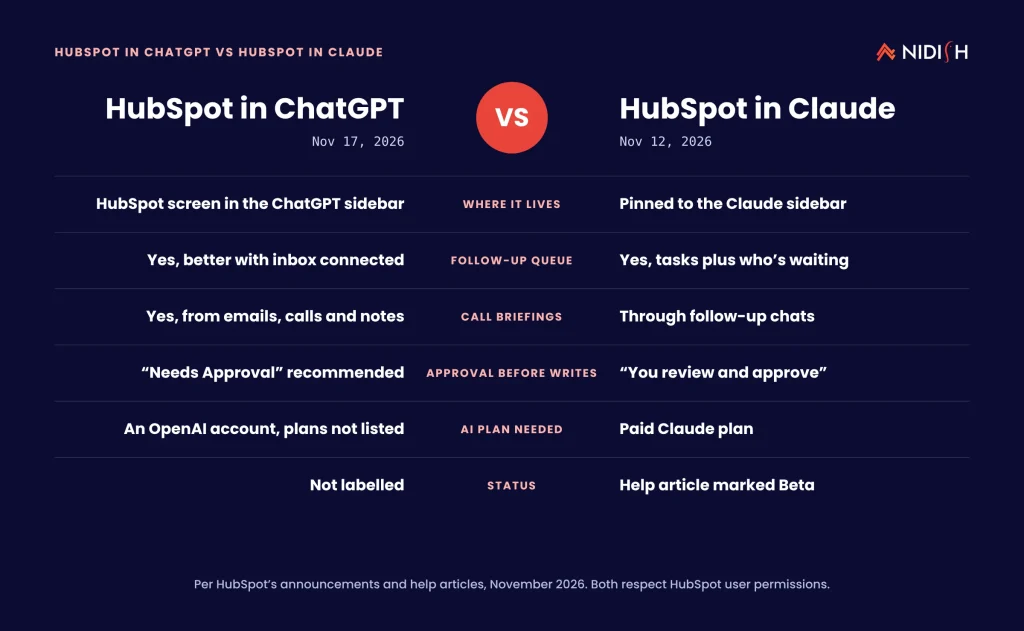
The biggest difference is how approval is configured. HubSpot’s Claude sidebar announcement says you review and approve both the deal stage change and the reminder before anything changes. For ChatGPT, HubSpot’s help article on connecting HubSpot to ChatGPT says ChatGPT shows proposed changes first, and recommends setting write tools to “Needs Approval”. If a user picks “Always allow”, edits may happen without asking.
HubSpot’s Claude connector page also lists the scope. It can read contacts, companies, deals, tickets, engagement history, quotes, invoices and more. It can also create or update contacts, companies, deals, tickets, line items and products, and log notes, calls, meetings, tasks and emails.
That is real write access. Treat it like a new integration user, not a chat toy.
If your company standardises on Microsoft’s assistant instead, the same questions apply to Salesforce and Dynamics connectors in Copilot.
Why the HubSpot ChatGPT connector matters for sales teams
The HubSpot ChatGPT connector matters because it moves CRM work to where reps already spend their day. Most reps don’t love the CRM. They love closing. Anything that lets them update a deal or prep a call from a chat window removes friction, and friction is why CRM data decays.
There is a catch. AI assistants are only as good as the records behind them. When a rep asks “who do I need to follow up with?”, the answer depends on tasks being logged, owners being correct and email being connected. On most portals we inherit, at least one of those is broken.
Who it suits
- Small and mid-sized sales teams on HubSpot who already live in ChatGPT for writing and research.
- Founder-led sales where one or two people juggle pipeline, email and prep with no sales ops support.
- Teams with clean activity logging, where the follow-up queue will be accurate on day one.
Who should wait
- Regulated teams (legal, healthcare, financial services) that haven’t decided which CRM data may flow into a third-party AI tool.
- Portals with messy permissions, where “everyone is a Super Admin” is still the setup.
- Teams mid-migration, because the AI will surface duplicate and half-imported records with complete confidence.
The pattern we see constantly: the AI feature gets blamed for bad answers that are really bad data. Fix the data first and the assistant looks smart.
7 proven steps to roll out HubSpot in ChatGPT safely
These steps come from how we roll out any new integration that can write to a CRM. They work for HubSpot in ChatGPT and HubSpot in Claude alike.
1. Audit the records the AI will read first
Start with the objects your reps will ask about most: contacts, companies, deals and tasks. Check owner assignment, lifecycle stage, deal stage and last activity date. Duplicates and missing owners produce wrong follow-up lists.
The fix: run a duplicate review and an owner audit before the pilot. Our CRM data migration checklist works just as well for a pre-AI clean-up.
2. Tighten HubSpot permissions before anyone connects
HubSpot’s help article for the Claude experience is clear: you can only view, create and edit the HubSpot data your user permissions allow. The connector page says the same about respecting permissions. That makes your permission sets the real control.
The fix: review permission sets by role. Remove blanket Super Admin access, restrict exports and bulk edits, and limit who can edit deal amounts and close dates.
3. Decide who can install the connector
HubSpot’s help articles for both assistants follow the same rule. Super Admins and users with App Marketplace Access can connect without prior approval. Everyone else needs a Super Admin to approve the connector first, and the approver chooses optional data permissions.
The fix: keep App Marketplace Access with a small group and approve AI connectors deliberately, one team at a time.
4. Write rules for what the AI may change
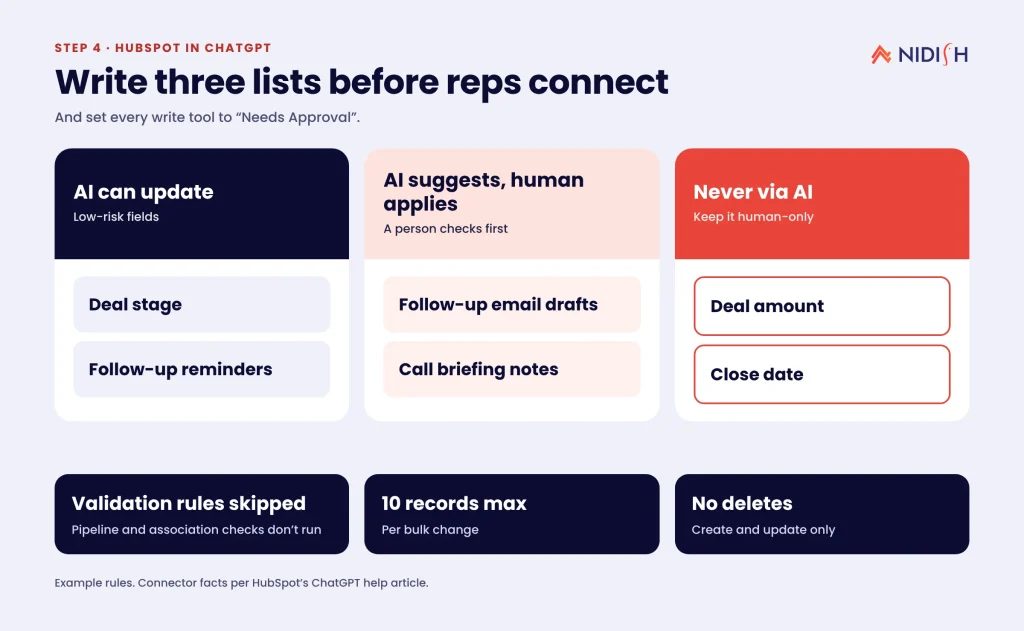
HubSpot in ChatGPT can update deals by prompt. Decide in advance which fields an assistant may change and which need a human in the CRM. Deal stage and next-step tasks are usually fine. Deal amount, close date and forecast category often are not.
There is a second reason to be strict. HubSpot’s ChatGPT help article says custom validation rules, including pipeline stage and association label validations, are not applied to connector writes. Bulk changes are capped at 10 records at a time, and deletes aren’t supported.
The fix: set write tools to “Needs Approval” for every user. Then document three lists: “AI can update”, “AI can suggest, human applies” and “never via AI”. Share them with reps before launch.
5. Connect the inbox, then check activity logging
Both announcements say the follow-up queue improves once you connect your inbox. That only helps if email logging and tracking are set up properly in HubSpot.
The fix: confirm the inbox connection, logging rules and association settings, so emails land on the right contact, company and deal.
6. Pilot with three to five reps for two weeks
Pick reps with different working styles. Ask them to use HubSpot in ChatGPT for follow-ups and call prep every day, and log anything wrong: missed follow-ups, bad drafts, unexpected record changes.
The fix: review the deal and contact history for pilot users weekly. HubSpot’s record history shows what changed and when, so you can spot AI-driven edits that weren’t intended.
7. Measure, then expand
Track a few simple signals: overdue tasks, time from meeting to logged next step, and how often deals sit without activity. Compare pilot reps with the rest of the team.
The fix: expand only when the numbers move and the error log is quiet. If they don’t, the issue is usually data or process, not the connector.
If you want a second pair of eyes on permissions and data before you switch this on, our HubSpot consulting team runs this kind of readiness review as a short, fixed-scope engagement.
Prompts worth testing in your pilot
Good prompts make the pilot fair. Give every pilot rep the same short set, so you compare HubSpot in ChatGPT against the same tasks each day instead of random experiments.
- Morning queue: “Who do I need to follow up with today, and why?”
- Call prep: “Brief me on Acme before my 2pm call. Include open deals, last three emails and any open tickets.”
- Follow-up draft: “Draft a follow-up to Priya based on our last meeting notes. Keep it under 120 words.”
- Deal hygiene: “Which of my open deals have no activity in the last 14 days?”
- Stage update: “Move the Acme renewal to proposal and remind me to chase on Friday.”
Ask reps to record two things for each prompt: was the answer correct, and did anything change in HubSpot that they didn’t expect? That simple log tells you more about readiness for HubSpot in ChatGPT than any vendor demo. If the deal hygiene prompt returns deals that closed months ago, you have found a data problem, not an AI problem.
Permissions, data access and AI governance
Governance for HubSpot in ChatGPT starts with one fact: the connector acts as the signed-in user. Whatever that person can see in HubSpot, the assistant can see. Whatever they can edit, the assistant can edit when asked.
That has three practical consequences:
- Over-permissioned users become over-permissioned AI. A sales rep with access to every deal can ask ChatGPT about every deal.
- Sensitive fields need a decision. HubSpot keeps Sensitive Data off for the ChatGPT connector unless a Super Admin grants read-only access. Decide whether health, legal or financial fields should ever be readable by AI tools.
- Your AI policy must name the tools. “Use AI responsibly” isn’t a policy. Name the approved assistants, the approved plans, and what data may flow into them.
Training rules also depend on the ChatGPT plan. HubSpot’s help article says connector data isn’t used for training on Enterprise, Business or Education plans. On Free, Go, Plus or Pro, users can opt out in ChatGPT settings; otherwise OpenAI may use connector data to improve connector performance. Regulated teams should settle this before the pilot.
One helpful detail for EU teams: HubSpot says the connector respects your data center location when data routes through HubSpot servers. Connection attempts are also visible to Super Admins in audit logs.
What the HubSpot ChatGPT connector costs and how long setup takes
HubSpot hasn’t published a separate price for HubSpot in ChatGPT. Its help article says the connector is available to HubSpot customers on all tiers with an OpenAI account, but it doesn’t list which ChatGPT plans qualify. Confirm that with OpenAI before rollout. For Claude, HubSpot’s connector page says it works on all HubSpot tiers and needs a paid Claude plan.
The real costs are time and clean-up. Based on the rollouts we run, here is a typical range, not a quote:
| Stage | Typical effort | Who does it |
|---|---|---|
| Data and duplicate audit | 1–3 days | RevOps or HubSpot admin |
| Permission review and clean-up | 1–2 days | HubSpot admin |
| Write rules and AI policy | Half a day | Sales leader plus ops |
| Inbox and logging checks | 1 day | HubSpot admin |
| Pilot (3–5 reps) | 2 weeks, light touch | Sales manager |
| Review and expand | 1 day | RevOps |
Portals with heavy custom objects or several integrations take longer, because the AI reads whatever your data model exposes. Our guide to HubSpot data model design explains why structure matters before AI arrives.
Also watch HubSpot’s own AI costs. If your team uses Breeze agents alongside connectors, read our explainer on HubSpot credits pricing so usage doesn’t surprise finance.
Common mistakes with AI connectors in HubSpot
Connecting before cleaning
The follow-up queue shows exactly what your data says. If tasks aren’t logged, the queue is wrong from day one.
Letting everyone connect on launch day
Ten reps connecting at once means ten different usage patterns and no way to trace what changed a record.
Leaving writes on “Always allow”
HubSpot recommends “Needs Approval” for ChatGPT write tools. With “Always allow”, edits can happen without a prompt, and your pipeline validation rules won’t catch them.
Skipping the inbox connection
Without it, the assistant misses half the follow-up picture.
Treating AI drafts as finished emails
Drafts pull from CRM history, including outdated notes. Reps still need to read before sending.
Forgetting the audit trail
If nobody reviews record history during the pilot, unintended edits surface weeks later in the forecast.
These mirror the wider pattern in our list of common HubSpot CRM mistakes growing companies make. AI amplifies whatever habits are already there.
How Nidish approaches AI connector rollouts
We treat HubSpot in ChatGPT and HubSpot in Claude as integrations, not features. That means a short readiness review covering data quality, permission sets, connector approval, write rules and inbox logging, followed by a monitored pilot with a small group of reps. Where teams need deeper workflows, such as custom objects or syncing AI-created activity to an ERP, our HubSpot integration services cover the build. We’ll also tell you when the honest answer is “fix the data first and wait a month.”
Frequently asked questions
What is HubSpot in ChatGPT?
HubSpot in ChatGPT is a HubSpot screen inside ChatGPT, announced on November 17, 2026. It upgrades the HubSpot connector for ChatGPT so you can see follow-ups, draft emails from CRM history, get pre-call briefings and update deals by prompt without leaving ChatGPT.
Is HubSpot in ChatGPT free?
HubSpot hasn’t announced a separate charge for HubSpot in ChatGPT. HubSpot says the connector works on all HubSpot tiers with an OpenAI account. Eligible first-time users may see a limited-time $25 credit offer, but HubSpot hasn’t published the full terms or who issues the credit.
Can ChatGPT change records in HubSpot?
Yes. It can create and update contacts, companies, deals, tickets and leads, and log activities, but it can’t delete records. ChatGPT shows proposed changes first, and HubSpot recommends the “Needs Approval” setting. Custom validation rules aren’t applied, so agree which fields AI may change.
How is HubSpot in Claude different?
HubSpot in Claude offers a similar pinned sidebar, launched on November 12, 2026. HubSpot states that you review and approve deal changes before they apply. HubSpot’s connector page says it works on all HubSpot tiers and needs a paid Claude plan.
Does the HubSpot ChatGPT connector respect user permissions?
Yes. HubSpot says its AI connectors respect the permissions set in HubSpot, so users only see and edit data their role allows. That makes permission sets your main control. Review them, especially Super Admin access, before anyone connects an AI assistant.
Should my whole sales team turn it on at once?
No. Pilot HubSpot in ChatGPT with three to five reps for about two weeks. Review record history for unintended edits, track overdue tasks and follow-up speed, and expand only when the data and the error log look healthy. Most teams learn more from a small pilot than a big launch.
Where to start
HubSpot in ChatGPT is a real productivity gain for reps who already think in prompts. It is also a new path into your CRM with write access. Clean the data, tighten permissions, write the rules, then pilot.
Book a 30 minute call. We’ll tell you honestly whether you need a full readiness review, a quick permissions clean-up, or nothing at all before you switch it on.


 Blog
 Case Studies
 Career