
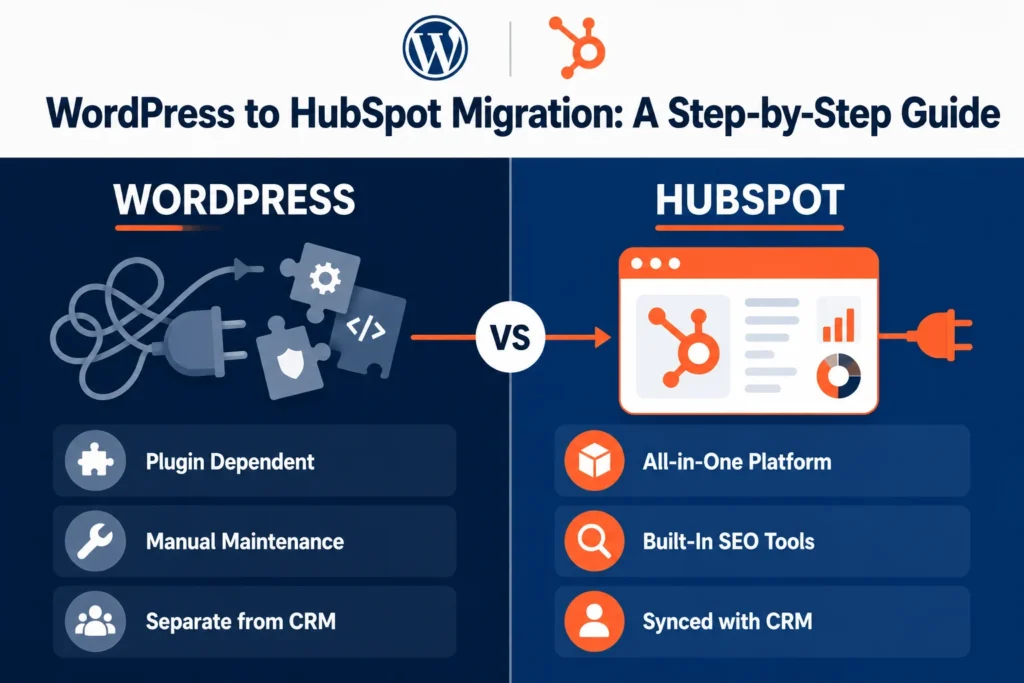
If you’re running a growing business on WordPress, chances are you’ve hit at least one of the usual walls. Plugin conflicts. Slow load times after every update. A marketing team that can’t touch the site without pulling in a developer. That’s usually the point where a WordPress to HubSpot migration starts to look less like a nice-to-have and more like the obvious next step.
This guide walks through the full process: what to plan for, how to avoid losing your SEO rankings, and the mistakes that trip up most teams the first time around.
Table of Contents
Quick Answer
A WordPress to HubSpot migration involves moving your content, design, and SEO data from WordPress’s open-source CMS into HubSpot’s all-in-one CMS Hub, which combines your website, CRM, and marketing tools in one place. Done right, it takes anywhere from 3 to 8 weeks depending on site size, and when redirects and metadata are handled properly, it shouldn’t cost you any organic traffic.
Why Businesses Move From WordPress to HubSpot
WordPress works well when you’re small and mostly hands-off with your marketing stack. But once your CRM, email campaigns, and website start living in separate tools, things get messy fast. Data doesn’t sync. Marketing has to wait on IT for basic content changes. And every plugin update carries a small risk of breaking something on the live site.
HubSpot’s CMS Hub folds the website directly into the same platform as your CRM and marketing automation. That means form submissions, page visits, and email activity all show up against the same contact record, without a Zapier workflow duct-taping it together.
Is a WordPress to HubSpot Migration Right for Your Business?
Not every WordPress site needs to move. If your site is small, static, and rarely updated, WordPress might still be the simpler option. But a WordPress to HubSpot migration usually makes sense if:
- Your marketing team depends on developers for routine content updates
- You’re already using HubSpot for CRM or email and want your website data in the same place
- Site speed and Core Web Vitals scores have been slipping despite plugin cleanup
- You’ve had security incidents or plugin conflicts that caused downtime
- You want built-in SEO recommendations and A/B testing without stacking more plugins
If two or more of these sound familiar, it’s worth scoping out what the move would actually look like for your site.
Step-by-Step: How to Migrate From WordPress to HubSpot
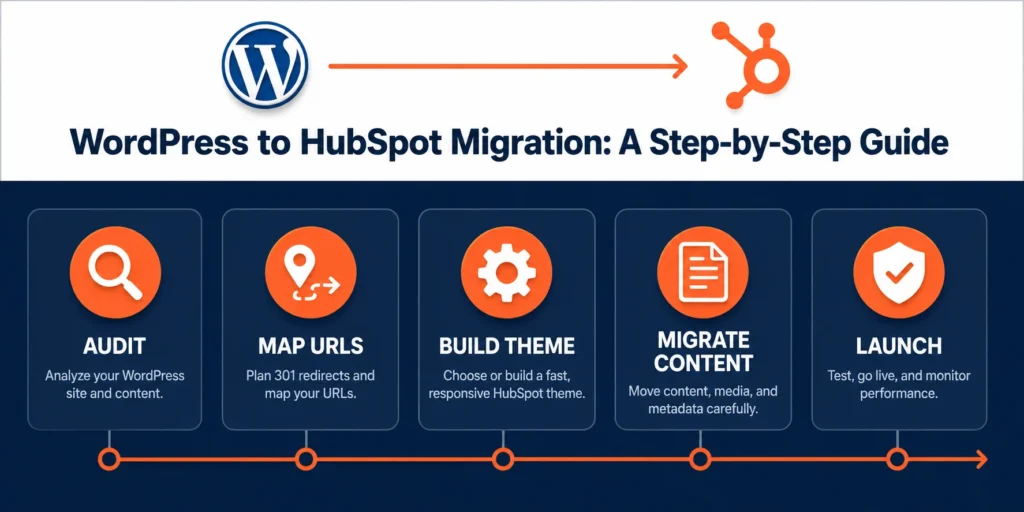
Step 1: Audit Your Existing WordPress Site
Before anything moves, you need a full inventory: every page, blog post, image, form, and redirect currently live on the site. This is also the point to run a broken link audit, since old 404s and orphaned redirects tend to surface here and are much easier to fix before the migration than after.
Step 2: Map Your URLs and Plan Redirects
This is the step most teams underestimate, and it’s the one that protects your SEO. Every existing URL needs a corresponding destination on the new HubSpot site, along with a 301 redirect. Skipping this step is the single fastest way to lose organic rankings during a WordPress to HubSpot migration.
Step 3: Choose or Build Your HubSpot Theme
You can bring your existing design over with a custom theme build, or move faster with a pre-built HubSpot marketplace theme that’s already optimized for speed and mobile responsiveness. The right choice depends on how much your current design matters to your brand versus how quickly you need to launch.
Step 4: Migrate Content and Metadata
Content, images, meta titles, meta descriptions, and alt text all need to move over intact. This is usually done with HubSpot’s import tools for straightforward sites, or a manual, page-by-page migration for larger or more customized ones, so nothing gets flattened or stripped out in the process.
Step 5: Rebuild Forms and Integrations
Any WordPress forms, whether built with Gravity Forms, WPForms, or similar, need to be recreated as native HubSpot forms so submissions flow directly into your CRM. This is also the point to reconnect any third-party integrations your site relied on.
Step 6: Test Before You Launch
Before going live, test every redirect, form, and page template across desktop and mobile. It’s worth checking analytics tracking too, so you’re not left with a gap in your data the day after launch.
Step 7: Launch and Monitor
Once the site goes live, keep a close eye on Google Search Console for crawl errors and any pages that didn’t get picked up correctly. Most ranking dips, if they happen at all, show up in the first two to four weeks and resolve once Google fully re-crawls the new site structure.
How Do You Protect SEO Rankings During a WordPress to HubSpot Migration?
This is the question that comes up more than any other, and for good reason. A WordPress to HubSpot migration doesn’t have to cost you rankings if you handle three things carefully: complete 1:1 redirect mapping, preserved metadata on every page, and keeping your URL structure as close to the original as possible where it makes sense. Google’s own guidance on site moves recommends keeping redirects live for an extended period so search engines have time to fully process the change, which is why this isn’t a step to rush before launch.
Common Mistakes to Avoid
- Skipping the redirect map: Even a handful of missed URLs can mean lost backlinks and a real dip in traffic.
- Forgetting alt text and schema markup: These are easy to lose in an import if nobody’s checking for them.
- Migrating everything at once with no staging environment: Testing on a staging site first catches problems before they’re public.
- Not briefing your team on the new editor: HubSpot’s CMS works differently from WordPress, and a short onboarding session saves a lot of confused Slack messages later.
- Launching without a rollback plan: Keep the old WordPress site accessible (even if unpublished) for a few weeks after launch, just in case.
How Long Does a WordPress to HubSpot Migration Take?
For a small site under 50 pages, plan for roughly 3 to 4 weeks. Larger sites with 100+ pages, custom functionality, or multiple integrations usually take 6 to 8 weeks. The timeline stretches if the content migration is manual rather than automated, so it’s worth scoping page count and complexity early rather than guessing.
If your team wants a second pair of eyes on the plan, we’ve written more on how these migrations typically play out in case you want to dig into specific scenarios. And if you’re still comparing themes for the new site, this guide to choosing a HubSpot theme is a good next stop.
How Nidish Can Help With Your Migration
We’ve handled enough of these migrations to know where things usually go sideways, and it’s rarely the parts people expect. It’s the redirect that got missed on a blog post from three years ago, or a form that quietly stopped syncing to the CRM after launch. Nidish has worked on WordPress to HubSpot migrations across service businesses, real estate, legal, and manufacturing, so we’ve seen most of the edge cases already.
If you’re weighing whether a migration makes sense for your site, or just want a second opinion on scope and timeline, we’re happy to take a look. No pressure either way, sometimes the right answer really is to stay on WordPress a bit longer. If you want to see how we typically scope these projects, check out our HubSpot migration service.
FAQ
Does migrating from WordPress to HubSpot hurt SEO rankings?
Not if it’s done properly. Rankings dip only when redirects are missing, metadata isn’t carried over, or URL structures change without a mapping plan. With careful planning, most sites see no meaningful ranking loss.
Can I keep my current WordPress design in HubSpot?
Yes. A custom HubSpot theme can be built to match your existing design closely, or you can choose a new pre-built theme if you’re open to a refresh.
What happens to my WordPress plugins after migration?
Most plugin functionality (forms, popups, SEO tools, analytics) has a native HubSpot equivalent, since these are built into the CMS Hub rather than added as separate plugins
Do I need a developer to migrate from WordPress to HubSpot?
For small, simple sites, HubSpot’s built-in import tools can handle much of the work. Larger or heavily customized sites typically benefit from a developer or agency handling the URL mapping, custom modules, and testing.



 Blog
Blog Case Studies
 Career